
Works on every Claude plan, on a computer or a phone.
- 1
Press "Add to Claude"
Open the connect page and press Add to Claude. Claude opens in a new tab.
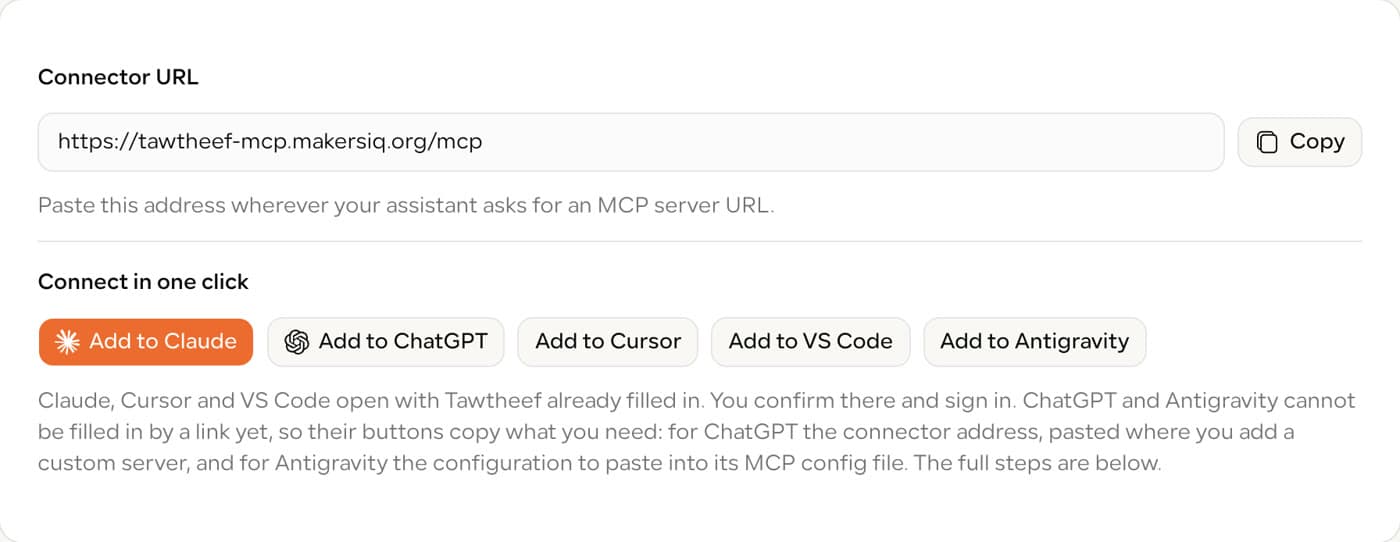
- 2
Check the name and address
Claude shows Add custom connector with the name Tawtheef and the address already filled in. Press Continue.
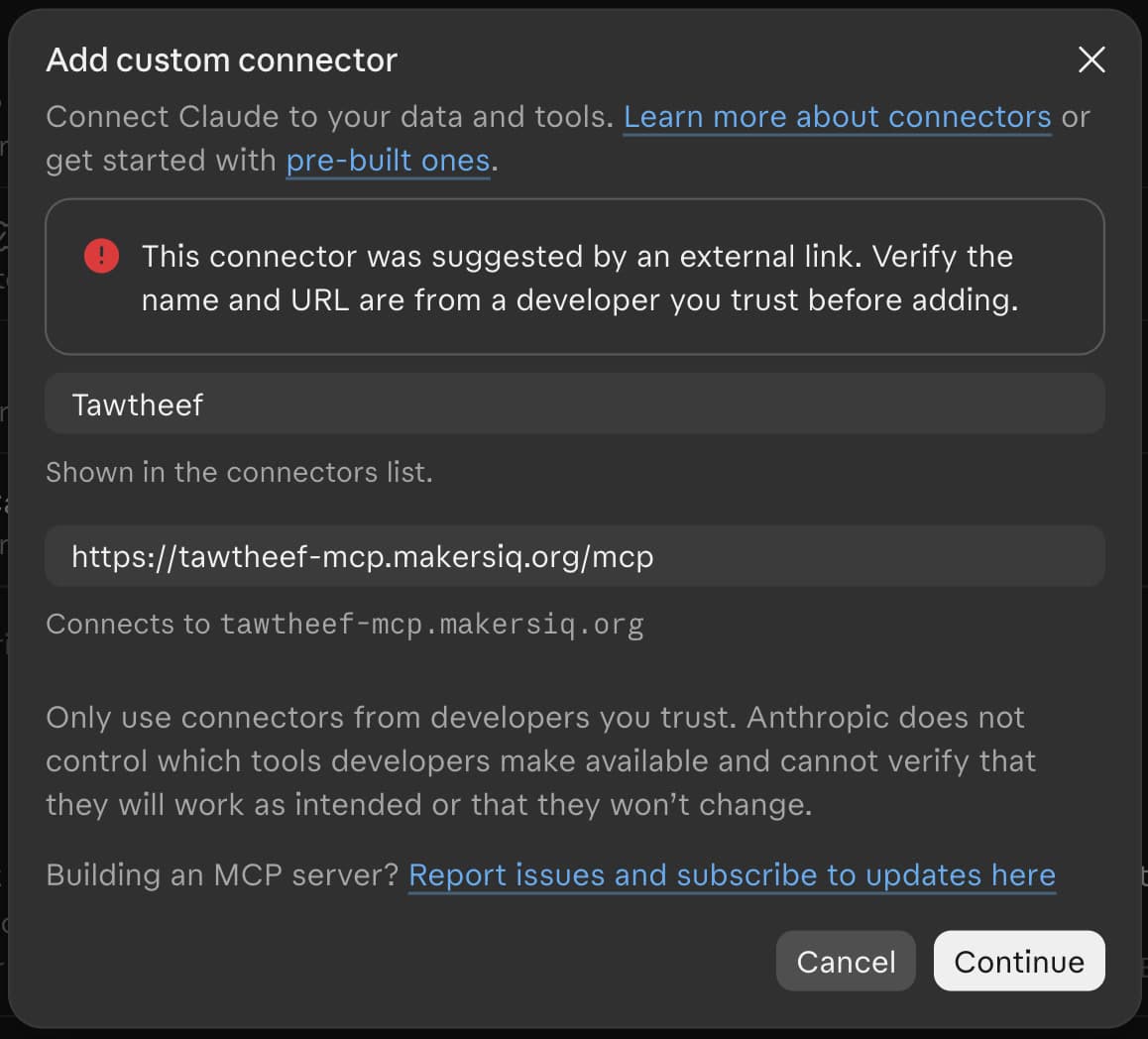
- 3
Leave the settings and press Add
Claude detects the sign-in method by itself (Register automatically is already selected). Change nothing, scroll to the bottom and press Add.
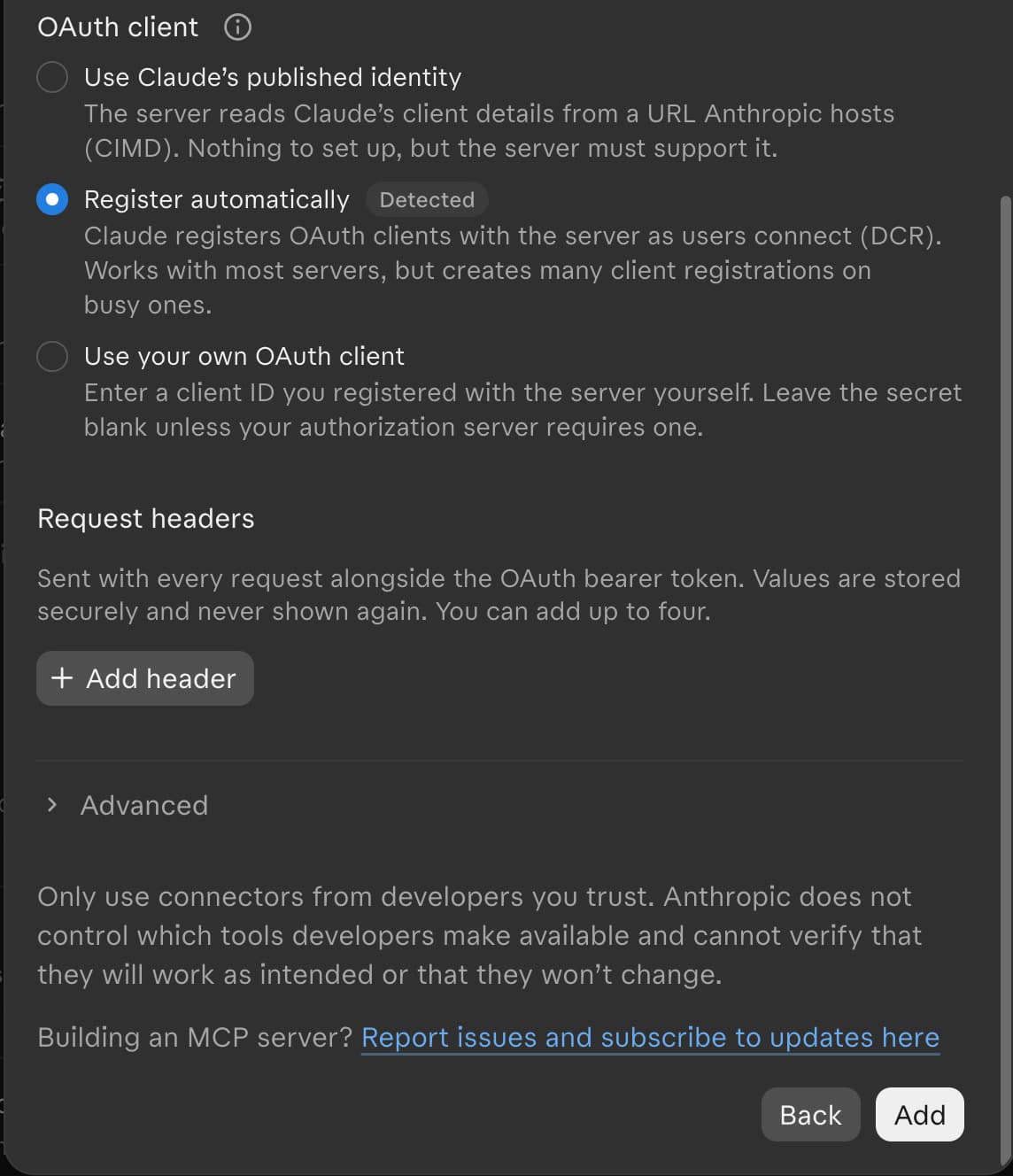
- 4
Press Connect
Tawtheef opens with Not connected next to it. Press Connect.
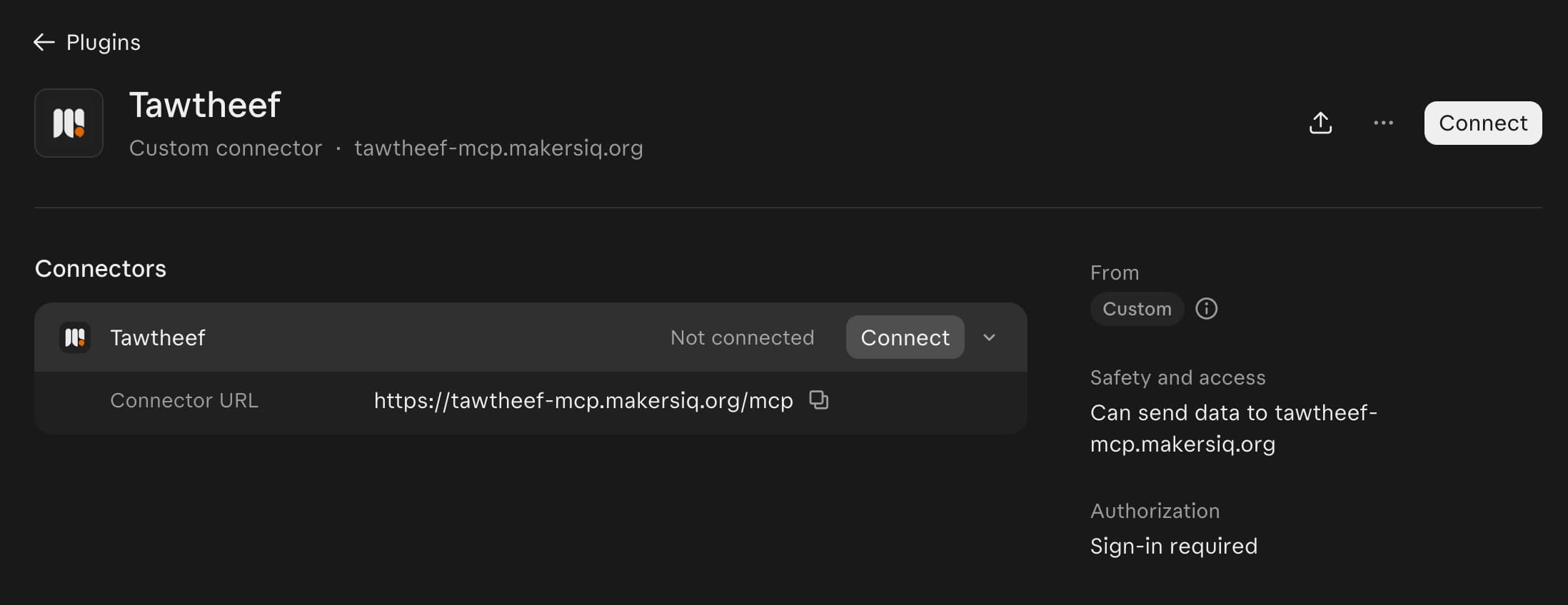
- 5
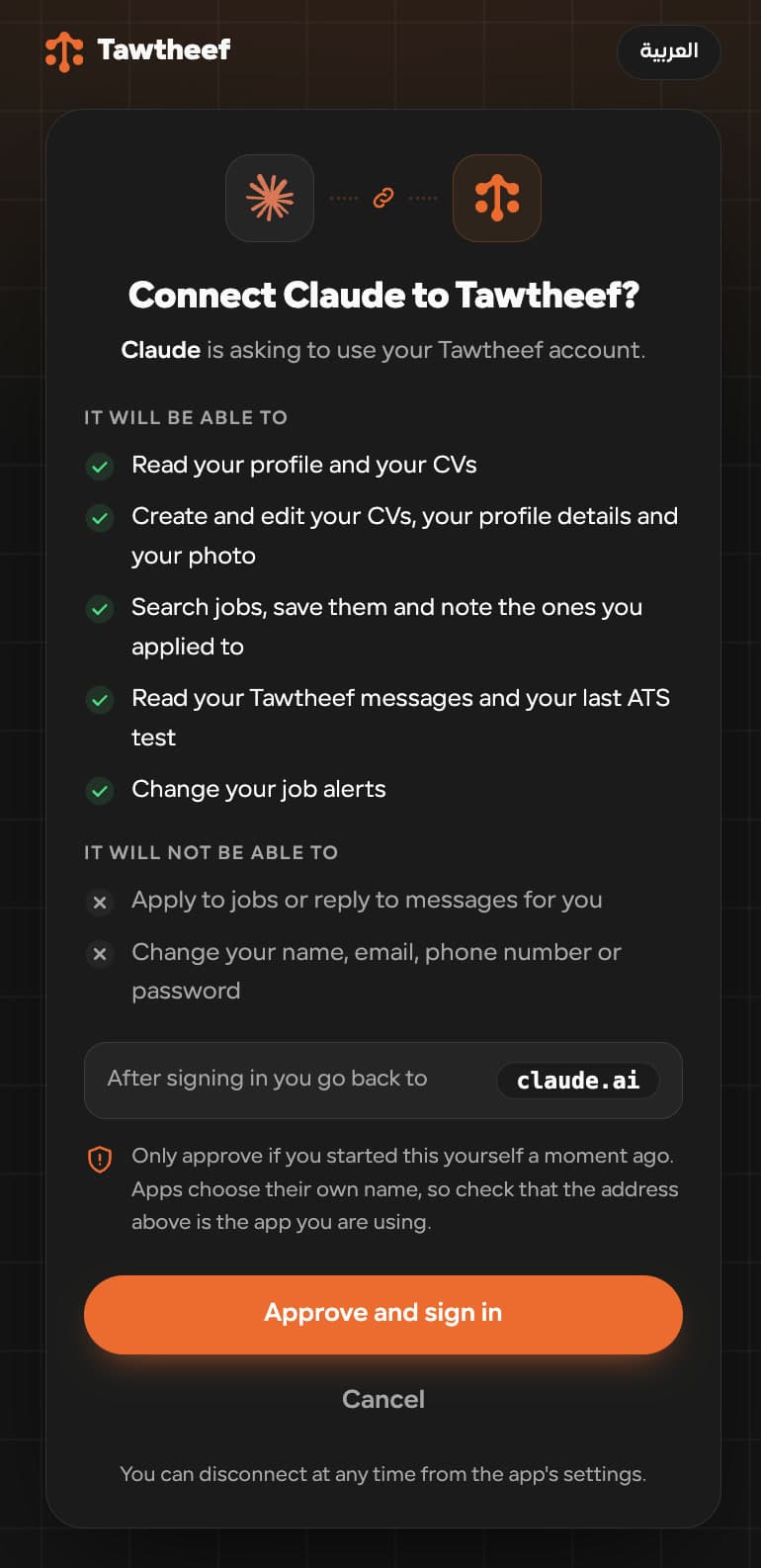
Approve and sign in
Tawtheef lists what Claude will and will not be able to do. Press Approve and sign in and sign in to your Tawtheef account. You do this once, and you can disconnect at any time.
- 6
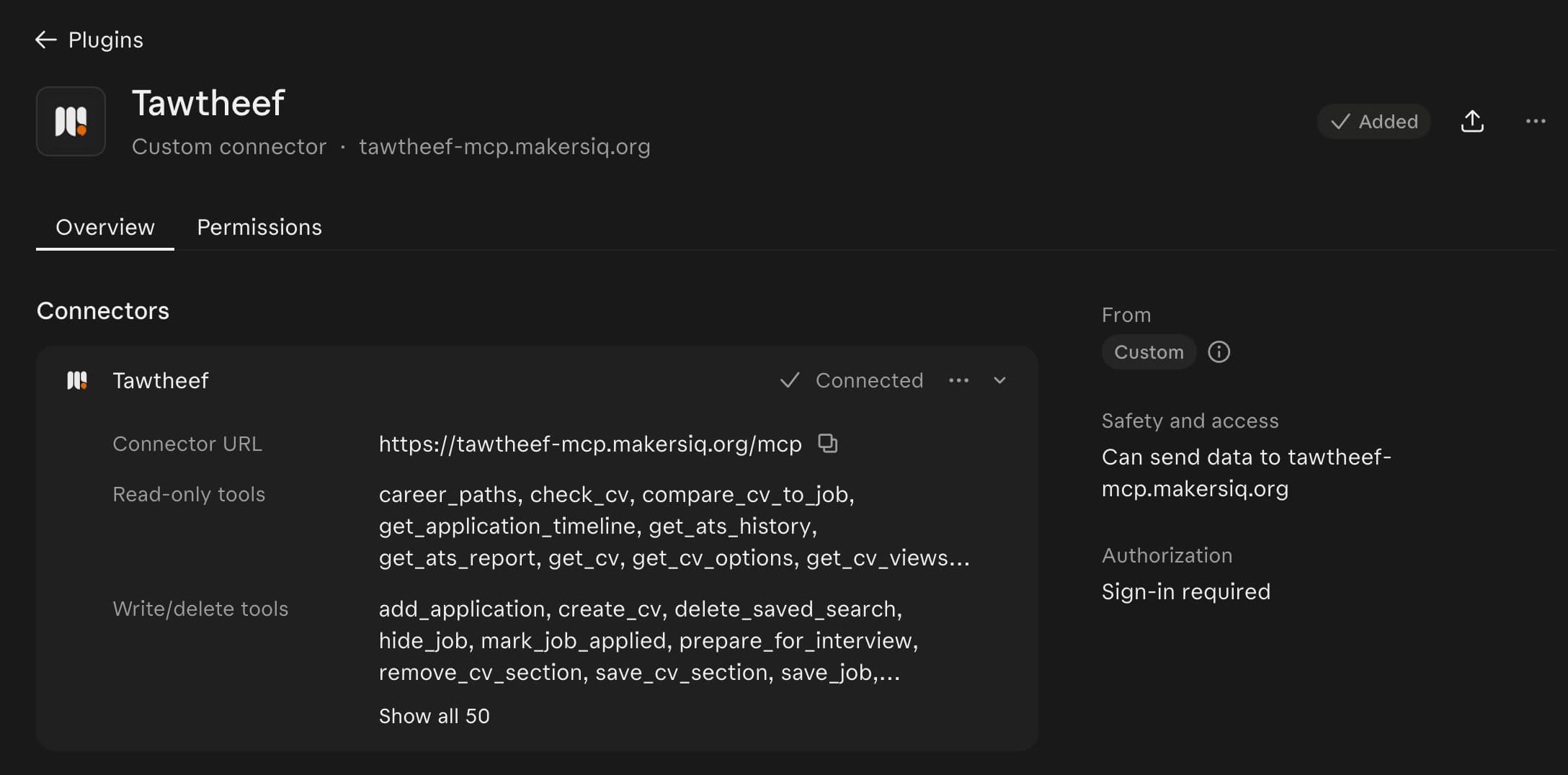
Check that it says Connected
Claude brings you back and shows Connected next to Tawtheef, with the list of what it can do.
- 7
Ask in any chat
Start a chat and ask in your own words, for example "Find jobs that fit my CV in Baghdad". Claude shows Used Tawtheef and answers from the live job board.